Introduction
For many years, I used Reeder Classic to read my RSS feeds. It remains an excellent application, but it has not received the same level of active development for quite some time, its interface also feels somewhat dated compared with the design language and capabilities available in modern versions of iOS and iPadOS.
Because of this, I decided to build my own RSS reader for FreshRSS.
The initial goal was simple: to create a fast, focused reading application that could sync with FreshRSS while providing a highly customizable reading experience based on Apple’s latest frameworks and Liquid Glass design.
I originally built Lettura for my own use, but after sharing early TestFlight versions with a few friends and receiving positive feedback, I decided to invest more time in preparing it for the App Store. After approximately six to eight months of beta testing, the result is this app.
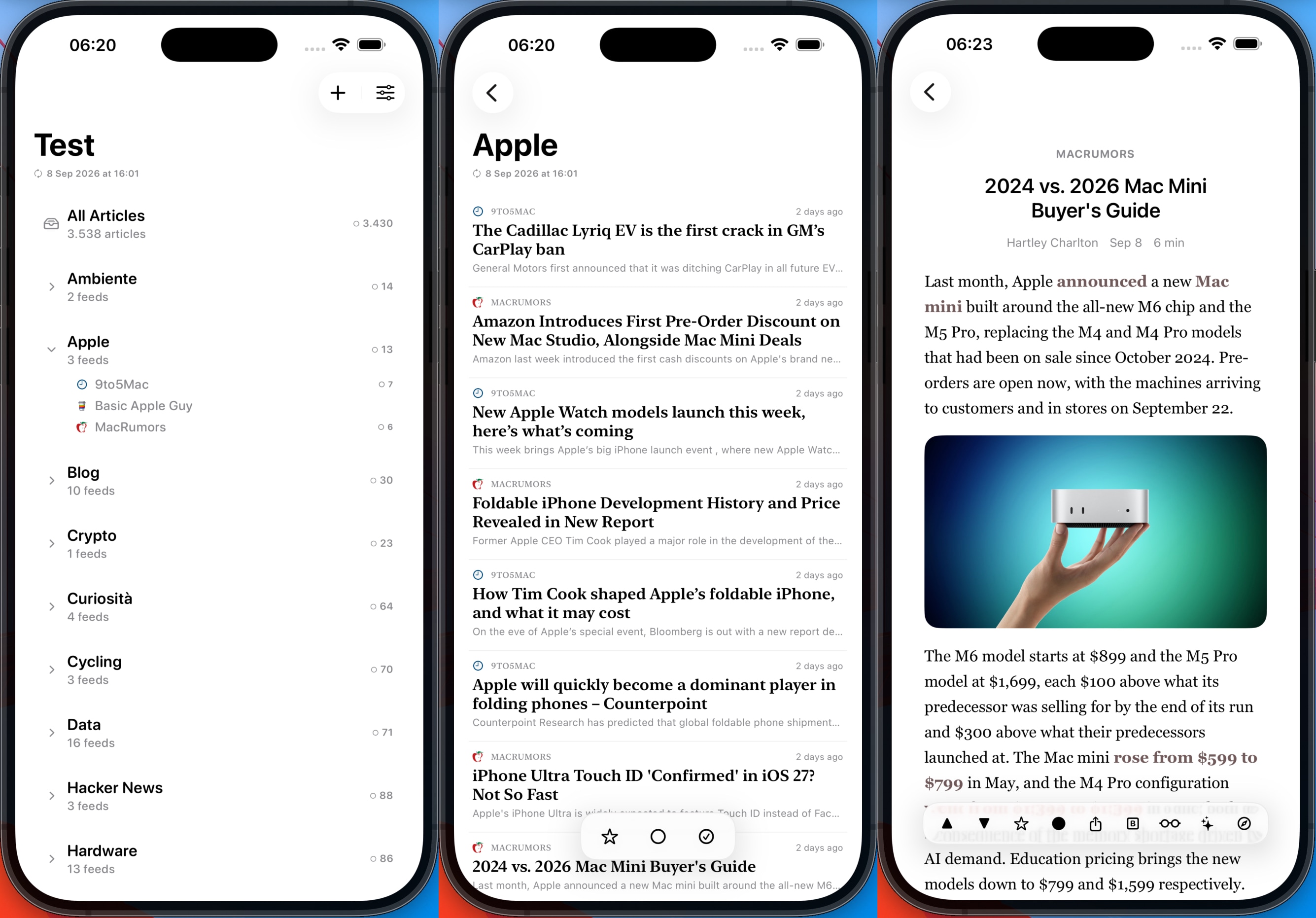
P.S. If you’re wondering about the name “Lettura”, it simply means “reading” in Italian.
Features summary
The main features of Lettura are listed below (click or tap any title to jump directly to its detailed explanation and video):
- Fast startup through a local cache
- Full FreshRSS synchronization, including starred articles
- Synchronization on launch, in the background, or through pull to refresh
- Configurable article-age limits for synchronization
- Mark articles as read while scrolling
- On-device AI article summaries with a customizable prompt
- A customizable reader dock with multiple actions
- Customizable leading and trailing swipe actions
- Actions for read/unread state, starring, Reading List, sharing, and browser opening
- Full article-content extraction
- Bionic Reading with five different rendering modes
- Customizable article-list and reader layouts
- Adjustable typography, spacing, density, and alignment
- Configurable link behavior for the in-app browser or Safari
- Remembered reading position for individual articles
- Rich embedded previews for X posts, YouTube videos, audio, video, and charts
- The article list dock for filtering read and starred articles
- Pure Dark and Midnight Dark appearance modes
- Inline image viewer with zoom support
- Manage existing feeds and folders
- Add feeds with automatic RSS discovery
- Manual iCloud backup and restoration of settings across devices
- A complete video walkthrough of the settings
- iPad compatibility
- iPad: The Mark Read on Scroll workaround
- iPad: The full-screen in-app browser
- macOS support through Mac Catalyst
- Demo mode
Architecture and implementation
Lettura communicates with a FreshRSS instance through its API, so a configured FreshRSS account is required for normal operation. However, the application includes a demo mode so that the first launch does not result in an empty interface.
Lettura is written almost entirely in SwiftUI, with a few small UIKit bridges. The main one is used for the custom horizontal swipe interaction on article rows. SwiftUI provides gesture recognizers, but I wanted more precise control over activation thresholds, gesture conflicts, and the visual behavior of the swipe actions
The main application state is coordinated by AppModel, which is annotated with @MainActor and @Observable.
The project is organized into relatively small files, all under 70 KB, with each file generally focused on a single responsibility: synchronization, article extraction, caching, read-state management, reading offsets, and article visibility are handled by dedicated types. This keeps the main views smaller and makes it easier to isolate performance-sensitive and stateful components.
Here are the main files involved in the application architecture:
Lettura/
├── App/
│   ├── AppModel.swift (8 KB)
│   ├── AppModel+ArticleActions.swift (8 KB)
│   ├── AppModel+ArticleList.swift (12 KB)
│   ├── AppModel+Cache.swift (12 KB)
│   ├── AppModel+Persistence.swift (8 KB)
│   ├── AppModel+Selection.swift (4 KB)
│   ├── AppModel+Sync.swift (36 KB)
│   ├── ArticleCacheController.swift (32 KB)
│   ├── ArticleReadStateController.swift (28 KB)
│   ├── LetturaApp.swift (20 KB)
│   ├── NavigationStateController.swift (4 KB)
│   ├── PersistenceController.swift (8 KB)
│   ├── ReadingOffsetController.swift (4 KB)
│   ├── RootView.swift (8 KB)
│   ├── SelectionController.swift (12 KB)
│   └── SyncStateController.swift (4 KB)
├── Design/
│   ├── AppTheme.swift (4 KB)
│   ├── Dock.swift (8 KB)
│   ├── GlassSurface.swift (12 KB)
│   ├── GlyphLabel.swift (4 KB)
│   └── ScrollPullObserver.swift (28 KB)
├── Features/
│   ├── Feeds/
│   │   ├── AddFeedSheet.swift (8 KB)
│   │   ├── EditFeedSheet.swift (12 KB)
│   │   ├── EditFolderSheet.swift (12 KB)
│   │   ├── FeedCredentialSection.swift (8 KB)
│   │   ├── FeedDiscoveryResultsView.swift (4 KB)
│   │   ├── FeedValidationViewModel.swift (16 KB)
│   │   └── SidebarView.swift (32 KB)
│   ├── Reader/
│   │   ├── ArticleActionQueue.swift (4 KB)
│   │   ├── ArticleBionicReading.swift (4 KB)
│   │   ├── ArticleListActionCoordinator.swift (8 KB)
│   │   ├── ArticleListDock.swift (4 KB)
│   │   ├── ArticleListIPadFallbackCoordinator.swift (4 KB)
│   │   ├── ArticleListRow.swift (16 KB)
│   │   ├── ArticleListScrollContent.swift (24 KB)
│   │   ├── ArticleListScrollReadBatchEngine.swift (4 KB)
│   │   ├── ArticleListSnapshot.swift (4 KB)
│   │   ├── ArticleListStore.swift (8 KB)
│   │   ├── ArticleListView.swift (28 KB)
│   │   ├── ArticleListViewActions.swift (12 KB)
│   │   ├── ArticleListViewModel.swift (8 KB)
│   │   ├── ArticleListViewSupport.swift (8 KB)
│   │   ├── ArticleReaderBlocks.swift (56 KB)
│   │   ├── ArticleReaderContentView.swift (40 KB)
│   │   ├── ArticleReaderView.swift (32 KB)
│   │   ├── ArticleScrollOffsetObserver.swift (8 KB)
│   │   ├── ArticleSummarySheet.swift (4 KB)
│   │   ├── ArticleVisibilityTracker.swift (24 KB)
│   │   ├── BrowserSupport.swift (4 KB)
│   │   ├── ReaderAttributedStringNormalization.swift (4 KB)
│   │   ├── ReaderDockView.swift (8 KB)
│   │   ├── ReaderInlineImageStore.swift (8 KB)
│   │   ├── SelectableArticleTextView.swift (12 KB)
│   │   └── SwipeableArticleRow.swift (24 KB)
│   └── Settings/
│       ├── AISummarySettingsPanel.swift (4 KB)
│       ├── AccountSettingsPanel.swift (8 KB)
│       ├── AppearanceSettingsPanel.swift (8 KB)
│       ├── ArticleListSettingsPanel.swift (16 KB)
│       ├── FolderSettingsPanel.swift (4 KB)
│       ├── ReaderDockSettingsPanel.swift (12 KB)
│       ├── ReaderSettingsPanel.swift (8 KB)
│       ├── SettingsPanelSupport.swift (12 KB)
│       ├── SettingsView.swift (12 KB)
│       └── SyncSettingsPanel.swift (8 KB)
├── Models/
│   ├── Article.swift (4 KB)
│   ├── ArticleDateFormatter.swift (4 KB)
│   ├── DisplayPreferences.swift (12 KB)
│   ├── FeedFolder.swift (4 KB)
│   ├── FeedModels.swift (4 KB)
│   ├── FolderStructureResult.swift (4 KB)
│   ├── ReaderPreferences.swift (44 KB)
│   ├── SyncConfiguration.swift (4 KB)
│   └── SyncEngineResult.swift (4 KB)
└── Services/
    ├── AppStateCache.swift (24 KB)
    ├── AppSyncEngine.swift (40 KB)
    ├── ArticleContentExtractor.swift (68 KB)
    ├── ArticleFullContentLoader.swift (12 KB)
    ├── ArticleMergeService.swift (12 KB)
    ├── ArticleSummaryService.swift (8 KB)
    ├── DemoSeedService.swift (12 KB)
    ├── FeedManagementCoordinator.swift (8 KB)
    ├── FaviconStore.swift (24 KB)
    ├── FreshRSSArticleService.swift (44 KB)
    ├── FreshRSSAuthService.swift (12 KB)
    ├── FreshRSSDiscoveryService.swift (12 KB)
    ├── FreshRSSFeedService.swift (20 KB)
    ├── FreshRSSMapping.swift (8 KB)
    ├── FreshRSSService.swift (4 KB)
    ├── RenderedPageHTMLLoader.swift (4 KB)
    ├── SiteCleaningRuleProcessor.swift (4 KB)
    ├── SiteCleaningRules.swift (4 KB)
    └── SyncCoordinator.swift (16 KB)
The central model owns the observable application state and the dedicated controllers handle specialized tasks:
@MainActor
@Observable
final class AppModel {
    var folders: [FeedFolder]
    var selectedArticlesCache: [Article] = []
    var cachedAllArticles: [Article] = []

    @ObservationIgnored var articleCacheController = ArticleCacheController()
    @ObservationIgnored var readStateController = ArticleReadStateController()
    @ObservationIgnored var readingOffsetController = ReadingOffsetController()

    @ObservationIgnored lazy var syncCoordinator =
        SyncCoordinator(service: service)

    @ObservationIgnored let service = FreshRSSService()
}
AppModel is isolated to the main actor because it exposes state consumed by SwiftUI. Network requests, cache preparation and other expensive operations run asynchronously and update the model only after their results are ready.
Fast startup
Lettura does not wait for a connection to FreshRSS before displaying the interface. It first loads a local cache containing the folder structure, articles, navigation state and pending synchronization operations, then immediately displays the cached content. This allows Lettura to cold-start within ~1 second:
The cache is loaded before the optional startup synchronization begins, so the user can see the previous application state almost immediately, even when the FreshRSS server is slow or temporarily unavailable.
private func bootstrapApp() async {
    await prepareSyncConfiguration()
    await appModel.reloadFromCacheIfNeeded()

    await Task.yield()
    try? await Task.sleep(for: .milliseconds(50))

    await MainActor.run {
        withAnimation(.easeInOut(duration: 0.85)) {
            splashOpacity = 0
        }
    }

    try? await Task.sleep(for: .milliseconds(100))

    await MainActor.run {
        showsSplash = false
    }

    Task { @MainActor in
        await appModel.flushPendingReadStateSyncNow()
        await appModel.readStateController.flushPendingStarStateSyncNow()
        await performStartupSyncIfNeeded()
    }
}
FreshRSS synchronization
Lettura can sync when the application launches, in the background or manually through pull to refresh.
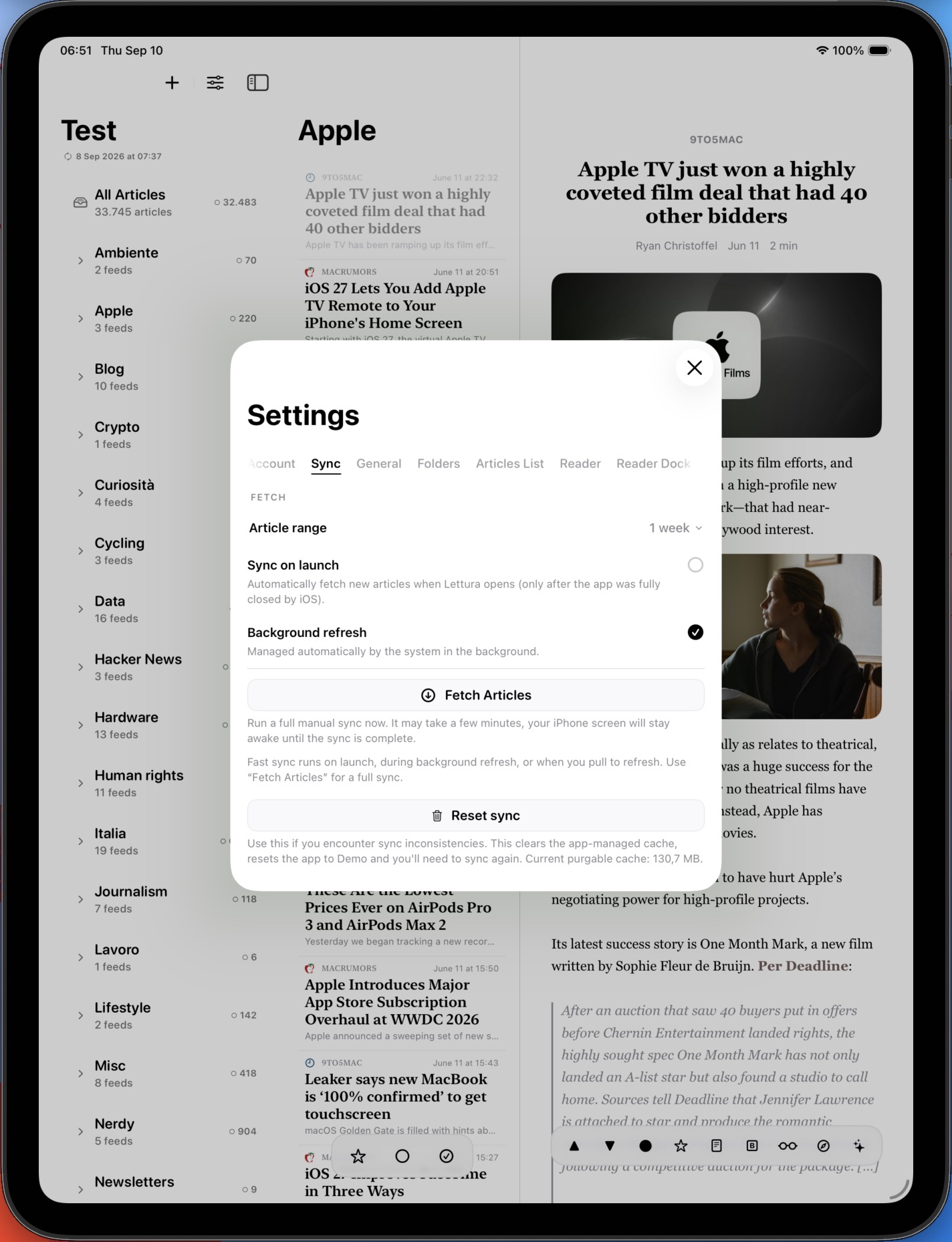
The synchronization engine is implemented in AppSyncEngine.swift and coordinated by SyncCoordinator. A full synchronization via settings retrieves the folder structure, subscriptions, article metadata, unread state, and starred state from FreshRSS.
The synchronization process obviously is incremental: each folder can be fetched and applied independently, allowing already-loaded content to be updated before the complete operation finishes.
static func syncAllFolders(
    using service: FreshRSSService,
    configuration: SyncConfiguration,
    currentFolders: [FeedFolder],
    protectedReadRemoteIDs: Set<String> = [],
    protectedStarStates: [String: Bool] = [:],
    onFreshFolders: @Sendable @escaping ([FeedFolder]) async -> Void = { _ in },
    onFolderFetched: @Sendable @escaping (
        _ folderName: String,
        _ articles: [Article],
        _ completedCount: Int,
        _ totalCount: Int
    ) async -> Void = { _, _, _, _ in }
) async throws -> SyncEngineResult {
    let context = try await service.makeSyncContext(
        serverURL: configuration.serverURL,
        username: configuration.username,
        apiPassword: configuration.apiPassword
    )

    return try await syncAllFolders(
        using: service,
        context: context,
        configuration: configuration,
        currentFolders: currentFolders,
        protectedReadRemoteIDs: protectedReadRemoteIDs,
        protectedStarStates: protectedStarStates,
        onFreshFolders: onFreshFolders,
        onFolderFetched: onFolderFetched
    )
}
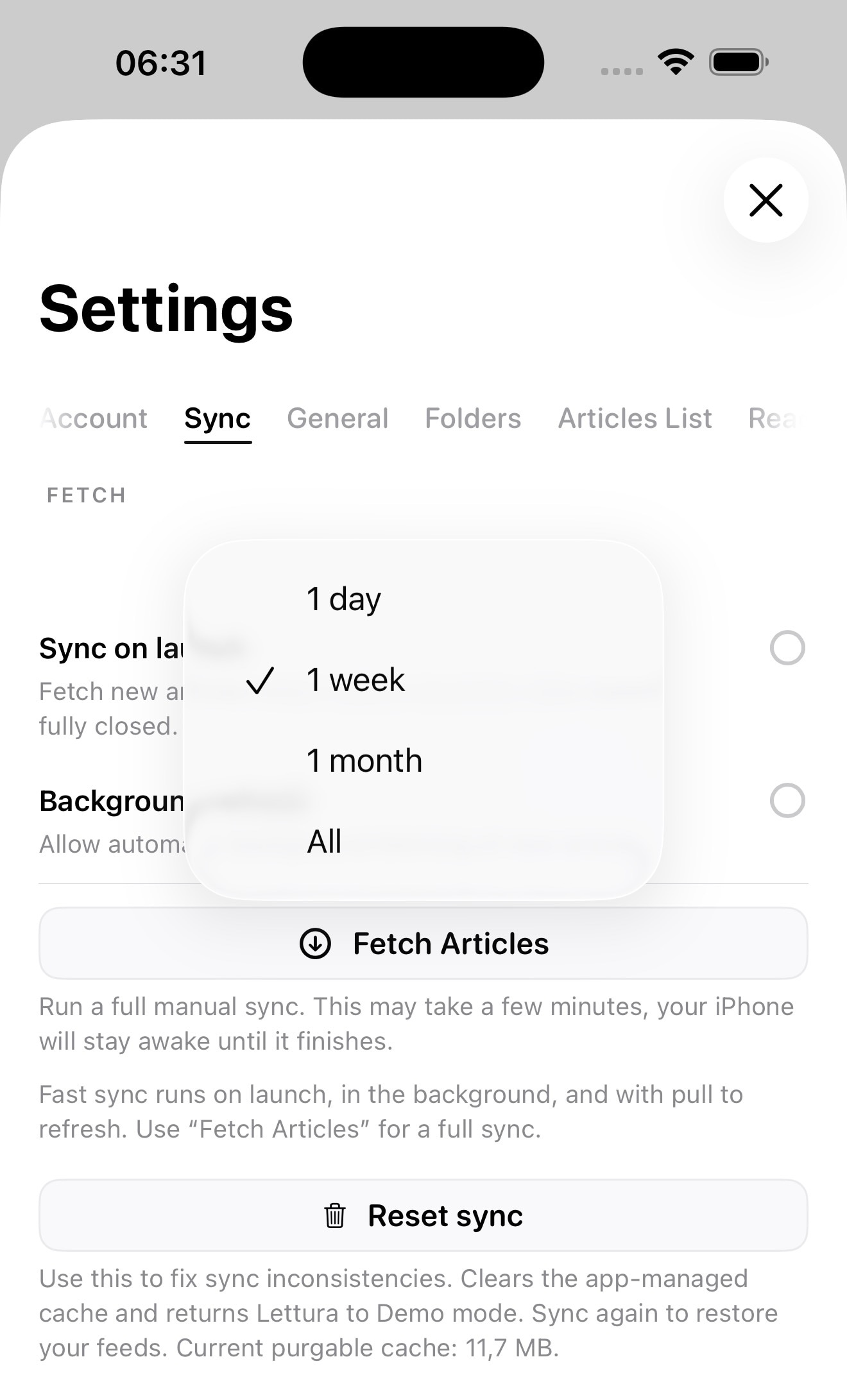
Since FreshRSS can return a large number of articles and slow down the synchronization process, Lettura supports an article-age limit: one day, one week, one month, or all available articles.
Unread and starred states are reconciled separately from the article payload (this is important because an article can change state on another FreshRSS client without its content changing).
When background synchronization is enabled, Lettura also schedules a BGAppRefreshTask, so, when the operating system decides when the task actually runs, the application uses that opportunity to refresh the local cache before the next launch.
Oh, an the synchronization progress is displayed using a fancy custom progress bar and animation:
Mark as read while scrolling
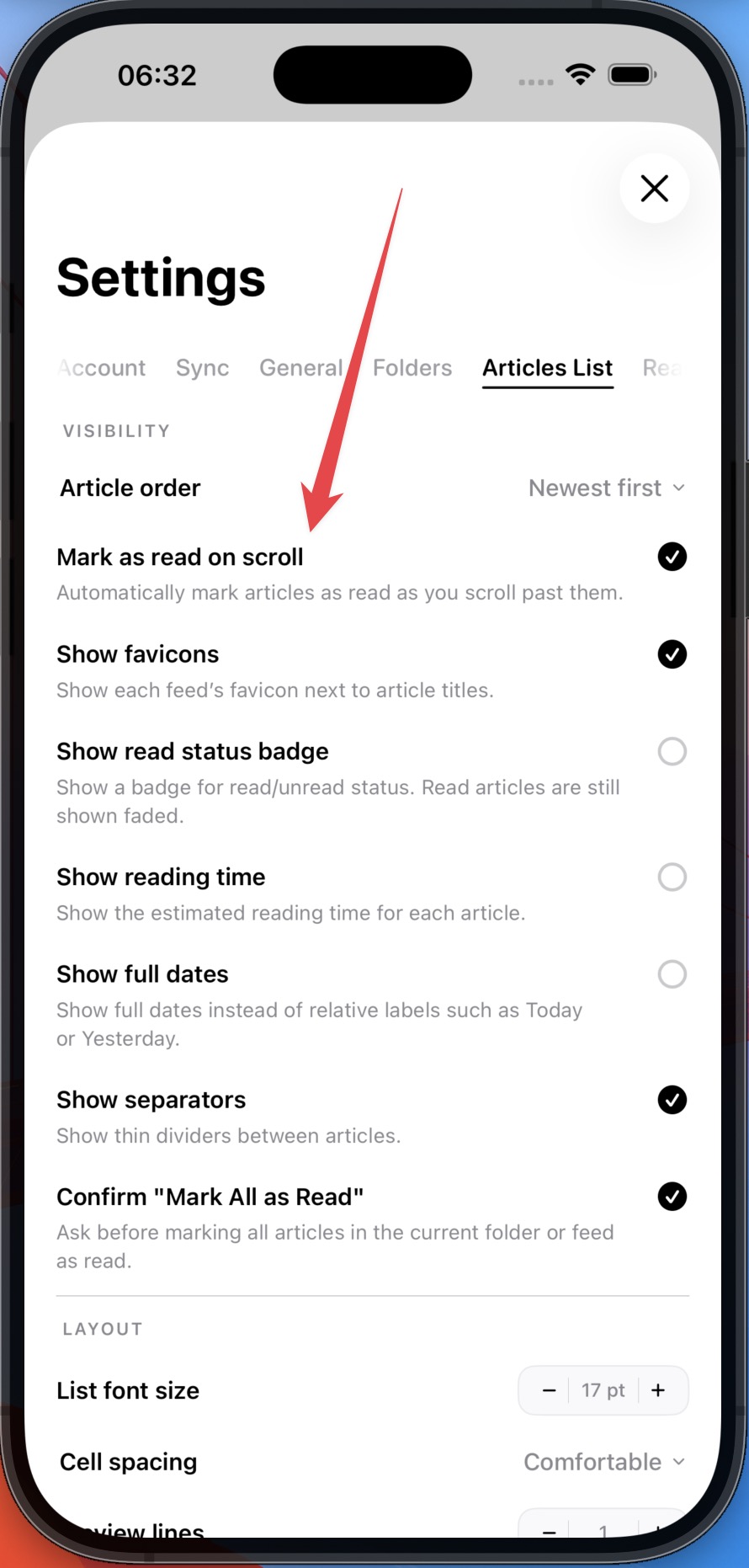
Lettura has an optional “Mark Read on Scroll” feature. The implementation doesn’t mark every article as read immediately when it goes above the screen. The MarkReadOnScrollController tracks the order of articles, currently visible article IDs, scroll direction, articles that have exited the viewport and pending read candidates.
The controller also prepares article ordering off the main actor:
static func syncAllFolders(
    using service: FreshRSSService,
    configuration: SyncConfiguration,
    currentFolders: [FeedFolder],
    protectedReadRemoteIDs: Set<String> = [],
    protectedStarStates: [String: Bool] = [:],
    onFreshFolders: @Sendable @escaping ([FeedFolder]) async -> Void = { _ in },
    onFolderFetched: @Sendable @escaping (
        _ folderName: String,
        _ articles: [Article],
        _ completedCount: Int,
        _ totalCount: Int
    ) async -> Void = { _, _, _, _ in }
) async throws -> SyncEngineResult {
    let context = try await service.makeSyncContext(
        serverURL: configuration.serverURL,
        username: configuration.username,
        apiPassword: configuration.apiPassword
    )

    return try await syncAllFolders(
        using: service,
        context: context,
        configuration: configuration,
        currentFolders: currentFolders,
        protectedReadRemoteIDs: protectedReadRemoteIDs,
        protectedStarStates: protectedStarStates,
        onFreshFolders: onFreshFolders,
        onFolderFetched: onFolderFetched
    )
}
The controller waits until scrolling becomes idle to avoid unnecessary state updates and network operations (and little battery drain). Pending operations are also persisted locally, so if the application moves to the background before synchronization finishes, the operations can be restored and uploaded later.
AI article summaries
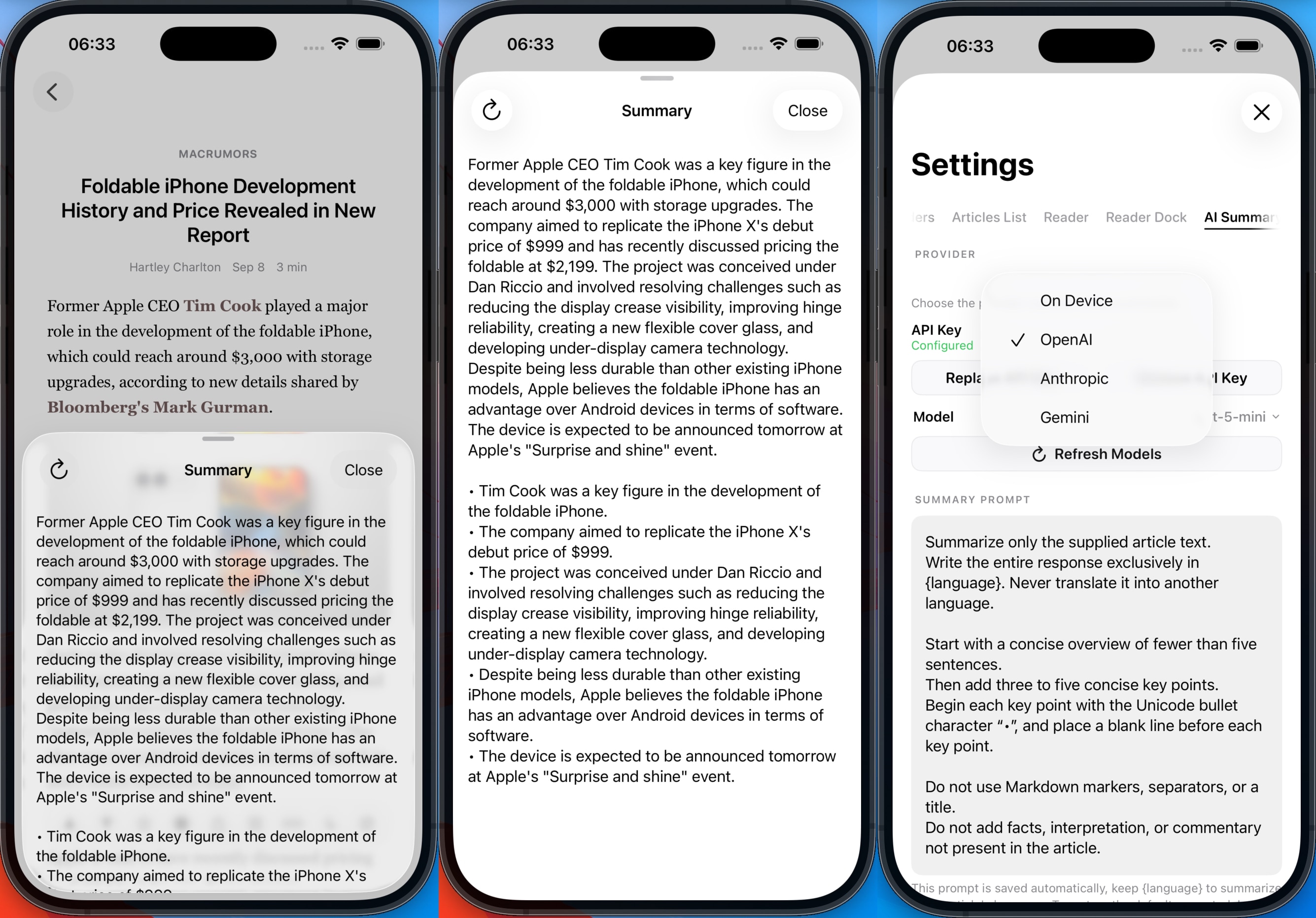
Lettura can generate an AI summary of the article currently open in the reader using the dock button, and the summary presents a short overview followed by key points, but the prompt can be customized in Settings.
The generated text is streamed progressively as soon as it becomes available, so the summary starts appearing in the reader before the generation is complete. This makes the reading feel faster and lets you start reading the result immediately.
When Apple Intelligence is available, Lettura uses Apple’s Foundation Models framework to generate the summary on-device, so the article text is not sent to an external AI service. You can also configure an external AI provider in Settings, in that case, article text is sent to the selected provider only when you explicitly request a summary.
For on-device summaries using Apple Intelligence, Lettura first checks that the system language model is available, then passes up to the first 12,000 characters of the article text to a LanguageModelSession (very long articles can fail because of Apple Intelligence context limitations). Then the model response is consumed through streamResponse and each new text fragment is displayed immediately.
For summaries generated by an external provider, Lettura sends the article text and configured prompt to the selected service, then processes the provider’s streamed response incrementally in the same way as on-device output. NLLanguageRecognizer identifies the article’s language so the summary is generated in that language (again, the same as on-device summary). Once generation is complete, Lettura caches the text for the current article, provider, model, and prompt during the current session, so the cached summary is immediately available when the summary sheet is reopened, but can be regenerated at any time using the “reload” button.
func streamSummary(
    _ article: Article,
    provider: SummaryProviderID,
    instructionsTemplate: String,
    modelIdentifier: String?
) async throws {
    let stream = try await SummaryCoordinator.shared.streamSummary(
        article,
        provider: provider,
        instructionsTemplate: instructionsTemplate,
        modelIdentifier: modelIdentifier
    )

    var streamedText = ""

    for try await delta in stream {
        try Task.checkCancellation()

        streamedText.append(contentsOf: delta)
        summaryState = .streaming(streamedText)
    }

    let summary = streamedText.trimmingCharacters(in: .whitespacesAndNewlines)
    summaryState = .ready(summary)
}
The customizable reader dock
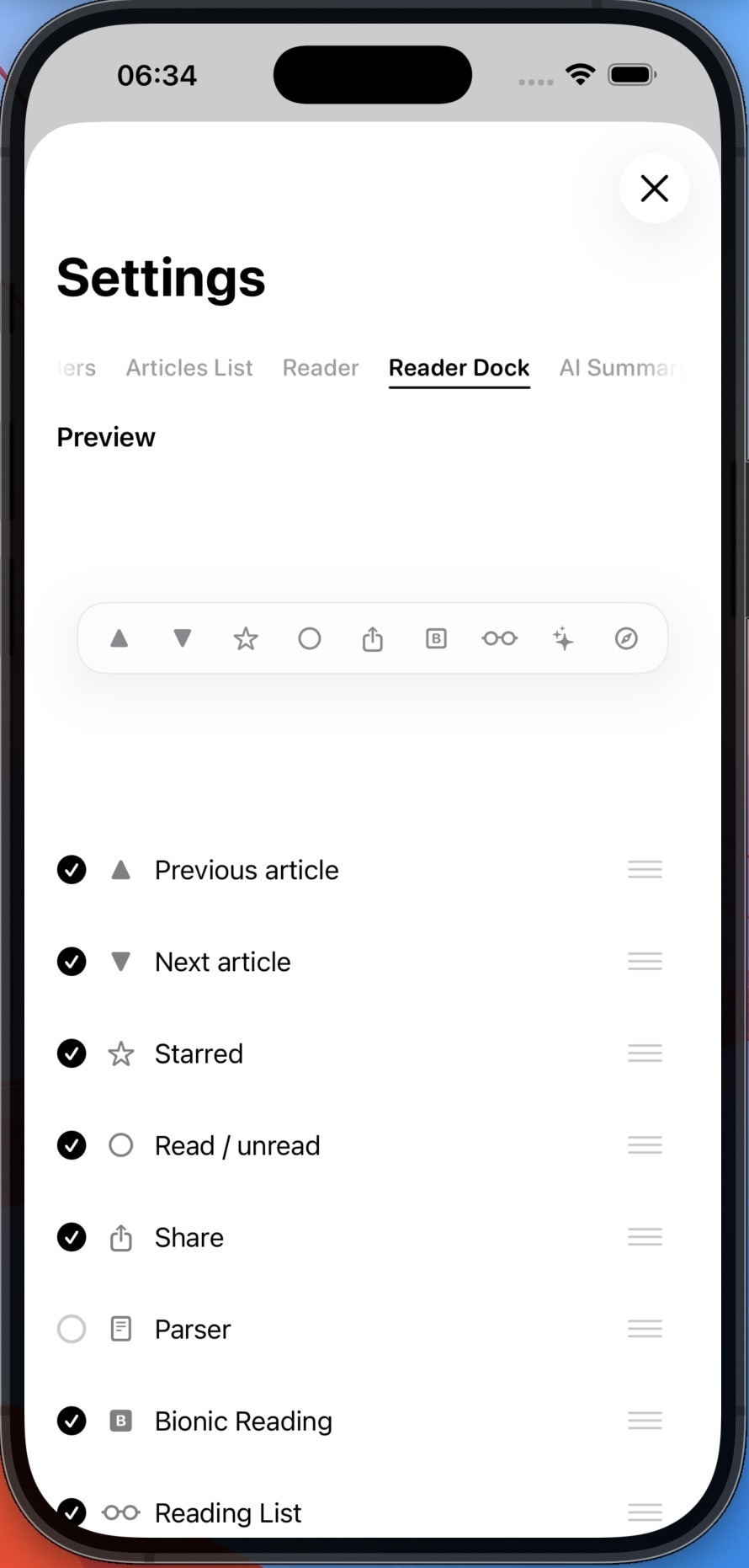
The reader has a configurable dock containing these actions: previous-next article, read state, starred state, full-content extraction, Bionic Reading, Reading List, browser opening, and sharing. The available actions and their order are represented by ReaderDockAction and stored in the user preferences.
Custom article swipe actions
Article rows support configurable leading and trailing swipe actions, available actions include: marking an article as read or unread, star/unstar, adding it to the Reading List, opening it in a browser and sharing it.
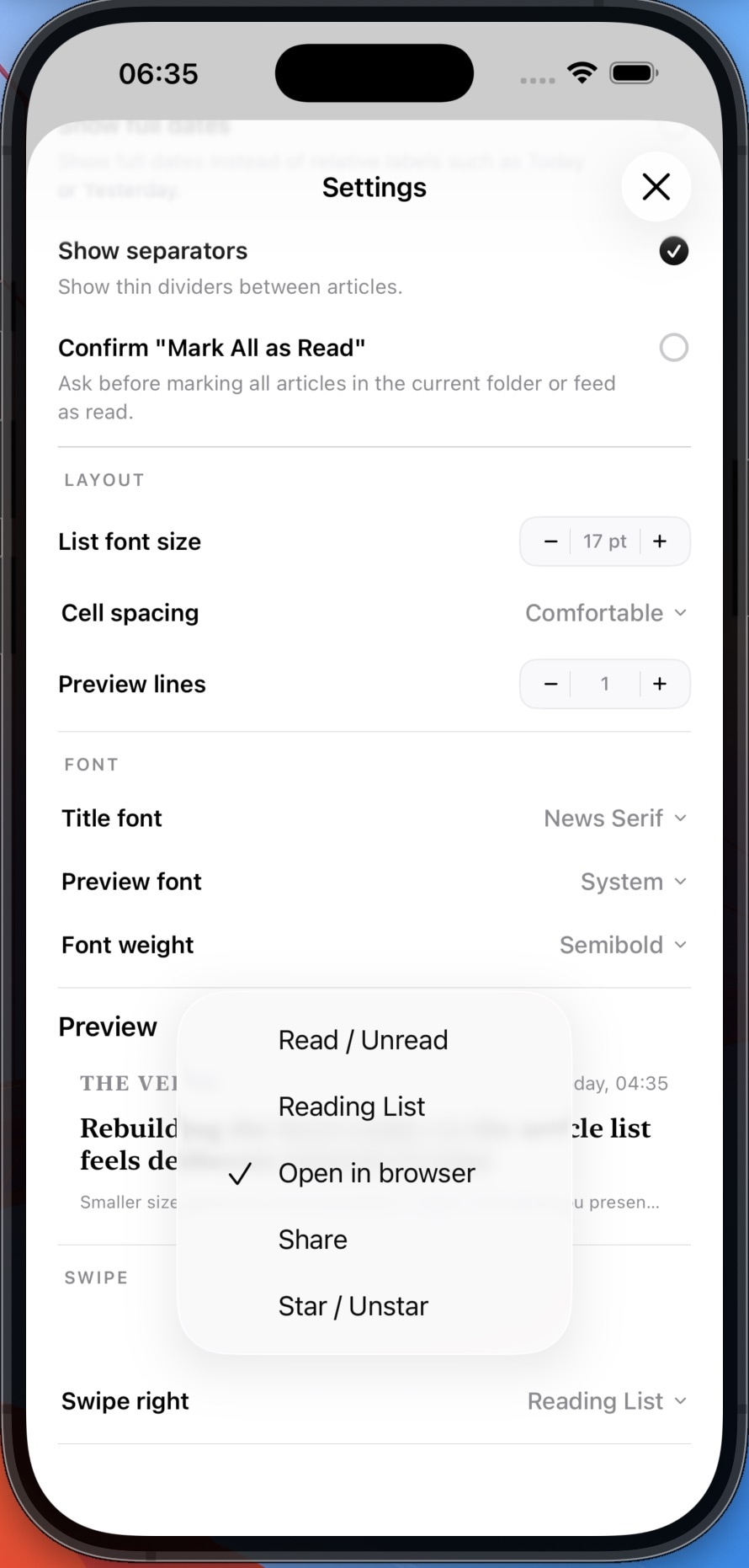
The horizontal interaction is implemented in SwipeableArticleRow.swift, a small UIKit bridge provides direct access to UIPanGestureRecognizer, making it possible to control gesture activation and avoid conflicts with vertical article-list scrolling and navigation gestures.
Full article extraction
RSS feeds often contain only a short summary or an incomplete version of an article, so Lettura can download the original webpage and extract the complete article content.
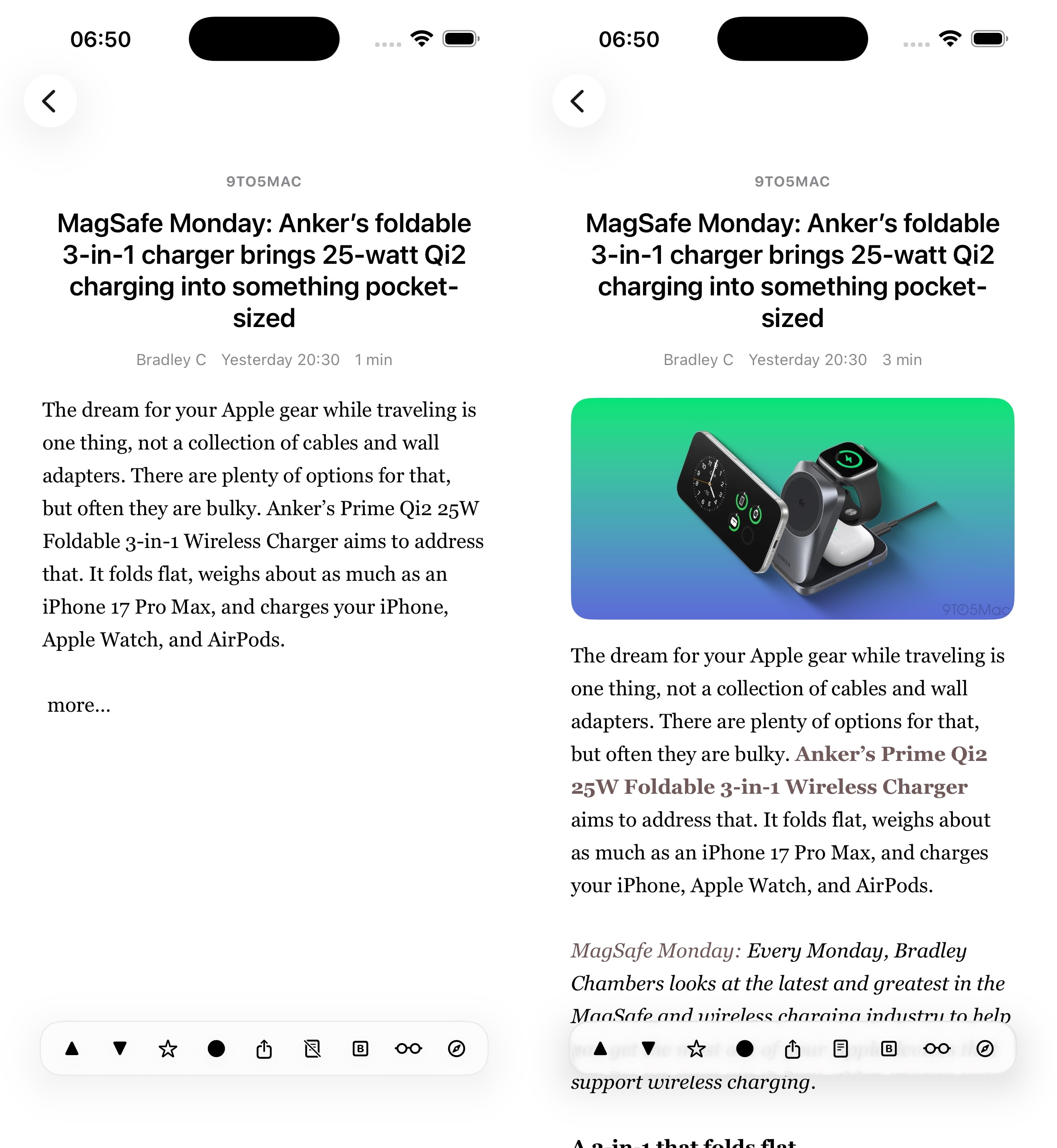
The extraction pipeline is implemented in ArticleContentExtractor.swift. It currently uses Mozilla Readability through the Ryu0118/swift-readability package.
The pipeline downloads the original HTML, limits its size, resolves the document base URL, preserves selected embedded content, extracts the main article and returns cleaned HTML and plain text.
The HTML download is streamed and limited to 5MB and, before passing the document to Readability, Lettura identifies content that should not be discarded, such as iframes, audio, video, and supported social embeds.
The extracted content is merged with the original RSS content: this allows the app to preserve information that may be present in the feed but missing from the extracted page, such as the original introduction or a short lead paragraph.
Lettura also estimates reading time from the extracted text, using an average reading speed of 220 words/minute.
Full-content extraction can be enabled or disabled from the reader dock.
Bionic Reading
Lettura includes five Bionic Reading modes (F1 to F5).
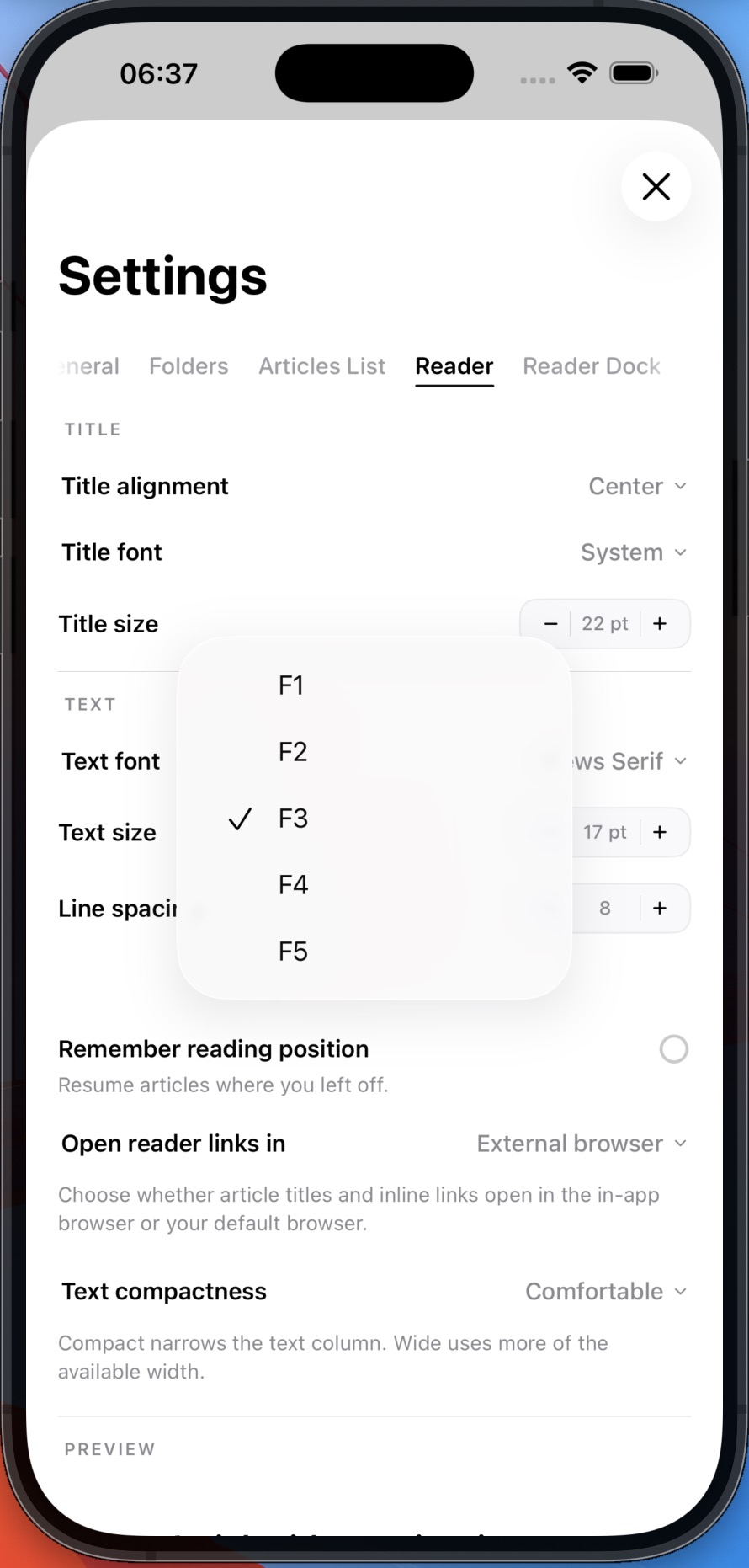
The implementation does not replace the article text, instead, it creates a mutable attributed string and applies a bold font to the initial portion of each sufficiently long word. The transformation uses a regular expression that recognizes words containing letters, numbers, apostrophes, and hyphens.
And when Bionic Reading is toggled, Lettura preserves the current reading position instead of returning the user to the beginning of the article.
Here’s the core of the Bionic Reading implementation:
let fixationLength = max(
    1,
    Int(ceil(Double(wordLength) * ratio))
)

let boldRange = NSRange(
    location: range.location,
    length: min(fixationLength, wordLength)
)

mutable.addAttribute(
    .font,
    value: boldFont,
    range: boldRange
)
Fonts and layout customization
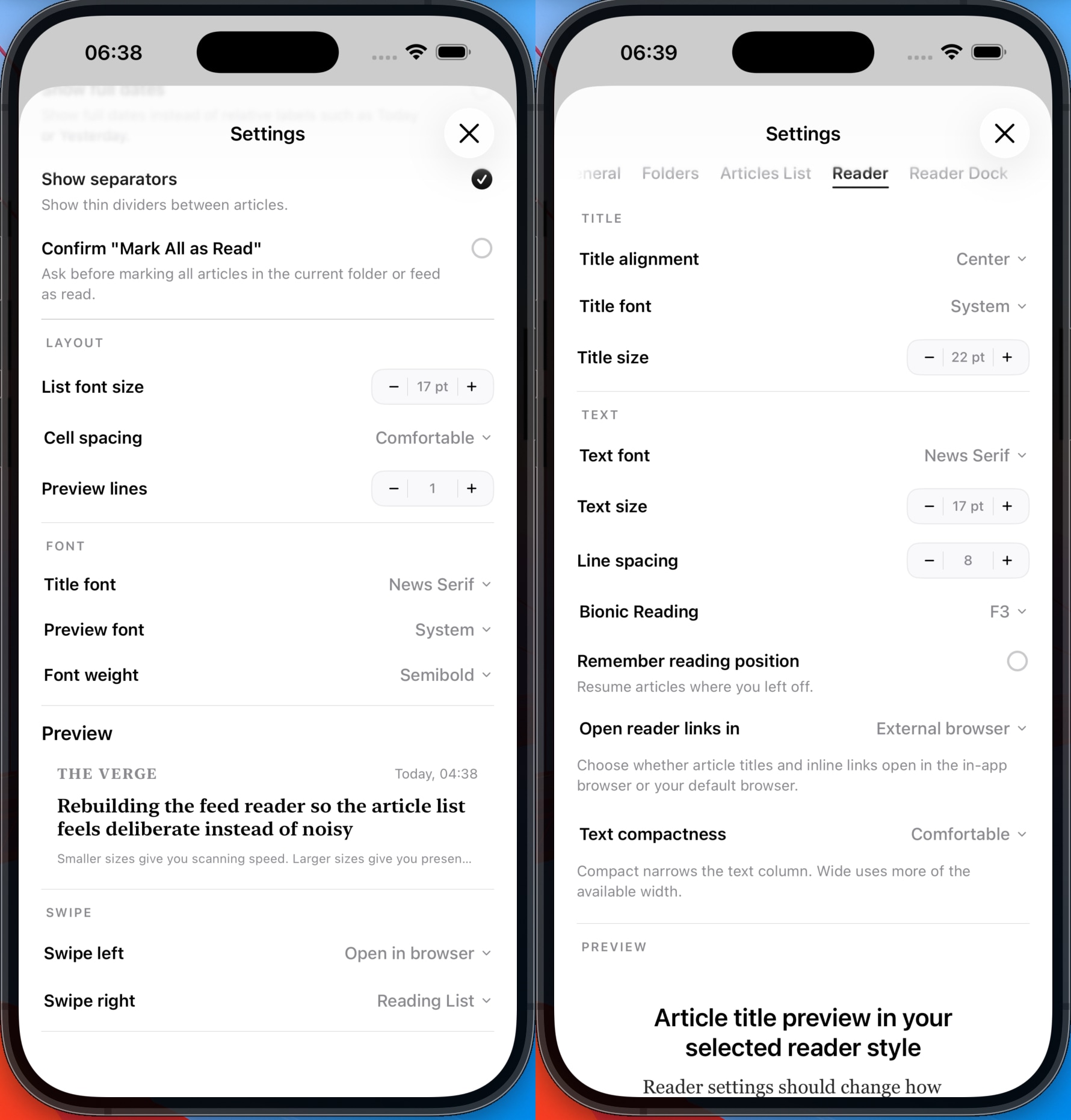
The article list and reader have independent typography settings: you can customize with 4 font family, size, weight, line spacing, title alignment, text compactness, article-list density, cell padding, preview length, separators, favicons, reading-time visibility, and read/unread indicators.
enum ReaderFontChoice: String, CaseIterable, Identifiable, Sendable {
    case system
    case news
    case classic
    case sans
}
Opening links in the browser
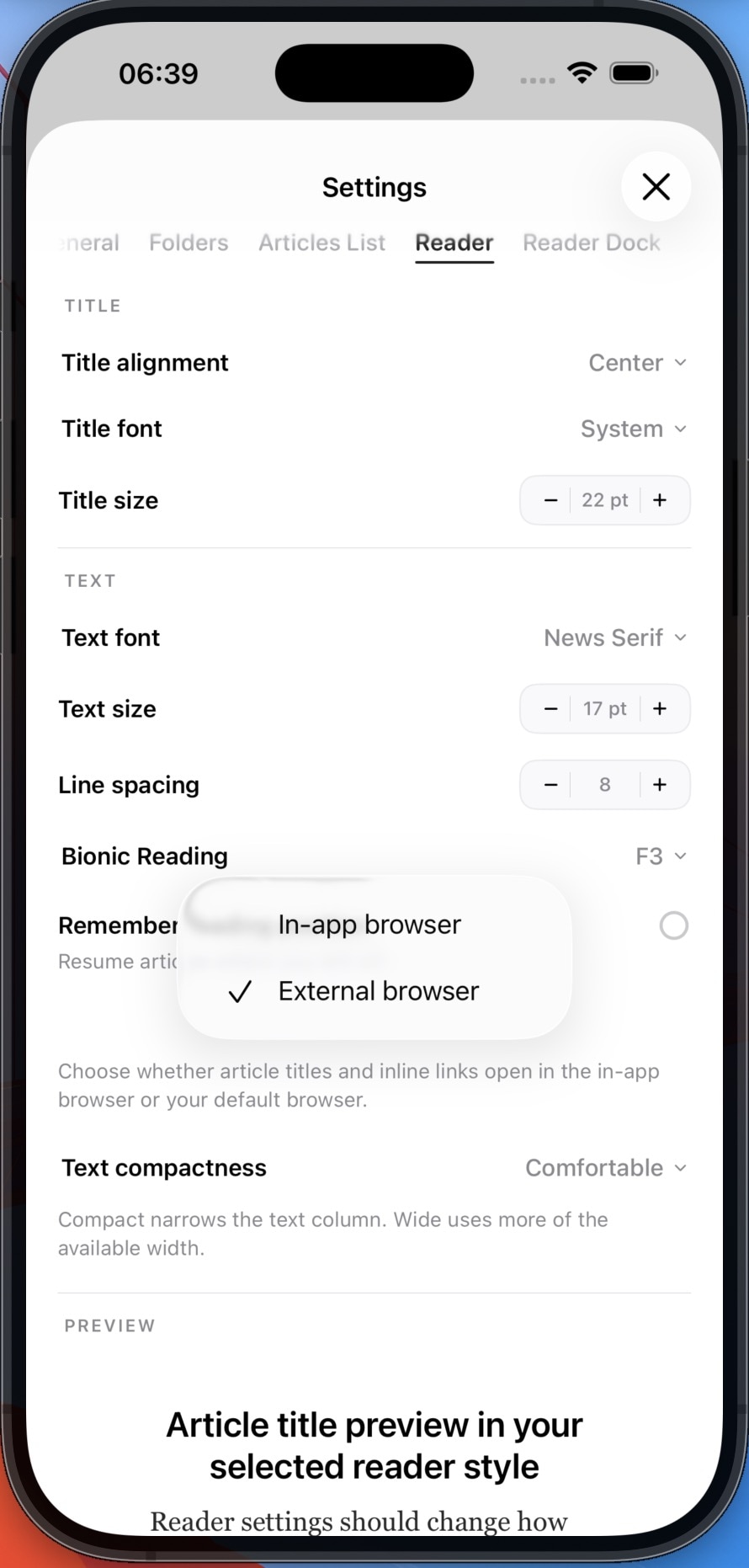
Links can be opened either inside Lettura or in the external browser.
This behavior can be configured globally and independently for the reader. For example, tapping an article title or link can open the original page in Safari, while the reader dock can still provide a separate action for opening the same page in the in-app browser.
Remembering the reading position
Lettura can remember the reading position of individual articles. ReadingOffsetController stores a vertical offset keyed by the article UUID.
func saveReadingOffset(
    _ offset: CGFloat,
    for articleID: UUID,
    remembersReadingPosition: Bool
) {
    guard remembersReadingPosition else { return }
    guard offset > 24 else { return }

    articleReadingOffsets[articleID] = offset
}
Small offsets are ignored so performing a minor scroll does not overwrite the position and avoid CPU load.
Rich embedded previews
Extracted article content can include more than plain text and images: Lettura recognizes and renders dedicated previews for X posts, YouTube videos, audio, video, chart and inline images.
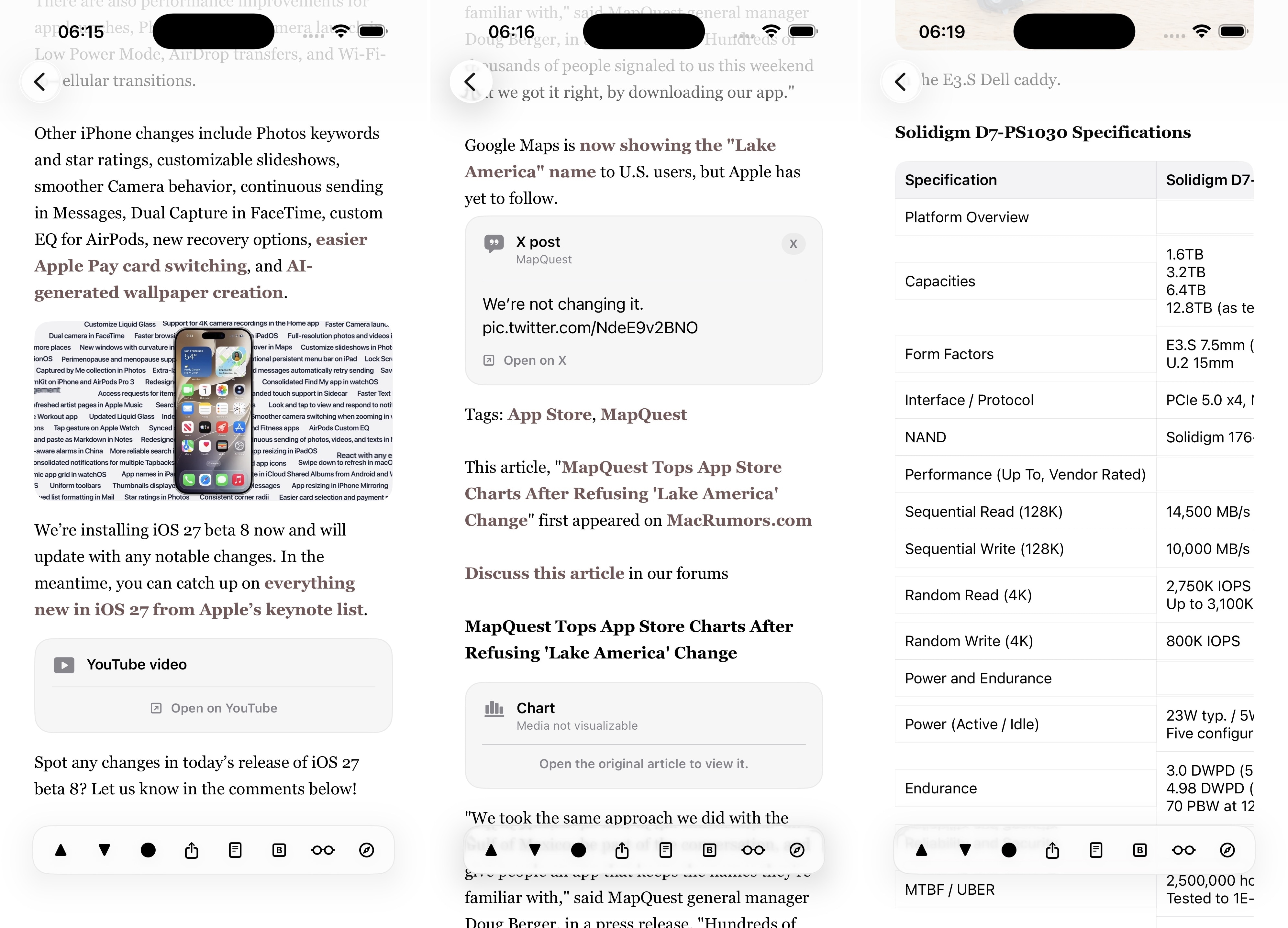
During extraction, supported embeds are temporarily protected from the HTML cleaning process, the reader then maps the resulting HTML into SwiftUI blocks, allowing text, images, links, and embedded media to appear in the same article layout.
@ViewBuilder
private func articleInlineMedia(_ url: URL) -> some View {
    switch readerInlineMediaKind(for: url) {
    case .youtube:
        YouTubeInlineMediaView(url: url, onOpenURL: openArticleURL)

    case .x:
        XInlineMediaView(url: url, onOpenURL: openArticleURL)

    case .instagram:
        InstagramInlineCardView(url: url, onOpenURL: openArticleURL)

    case .webEmbed:
        InlineWebEmbedContainer(url: url)
            .frame(height: 220)

    case .video, .audio:
        InlineAVPlayerView(
            url: url,
            height: kind == .audio ? 88 : 220
        )

    case .chartPlaceholder:
        chartPlaceholderCard
    }
}
The article list dock
The article list has its own dock, implemented in ArticleListDock.swift, but unlike the reader dock, which contains actions for the currently opened article, the article-list dock controls how articles are displayed and provides actions that apply to the current folder or feed.
The dock includes these main actions:
- show only starred articles
- show only starred unread articles when both filters are enabled
- hide or show articles that have already been read
- mark all articles in the current feed/folder as read (with optional confirmation setting)
Dark appearance modes
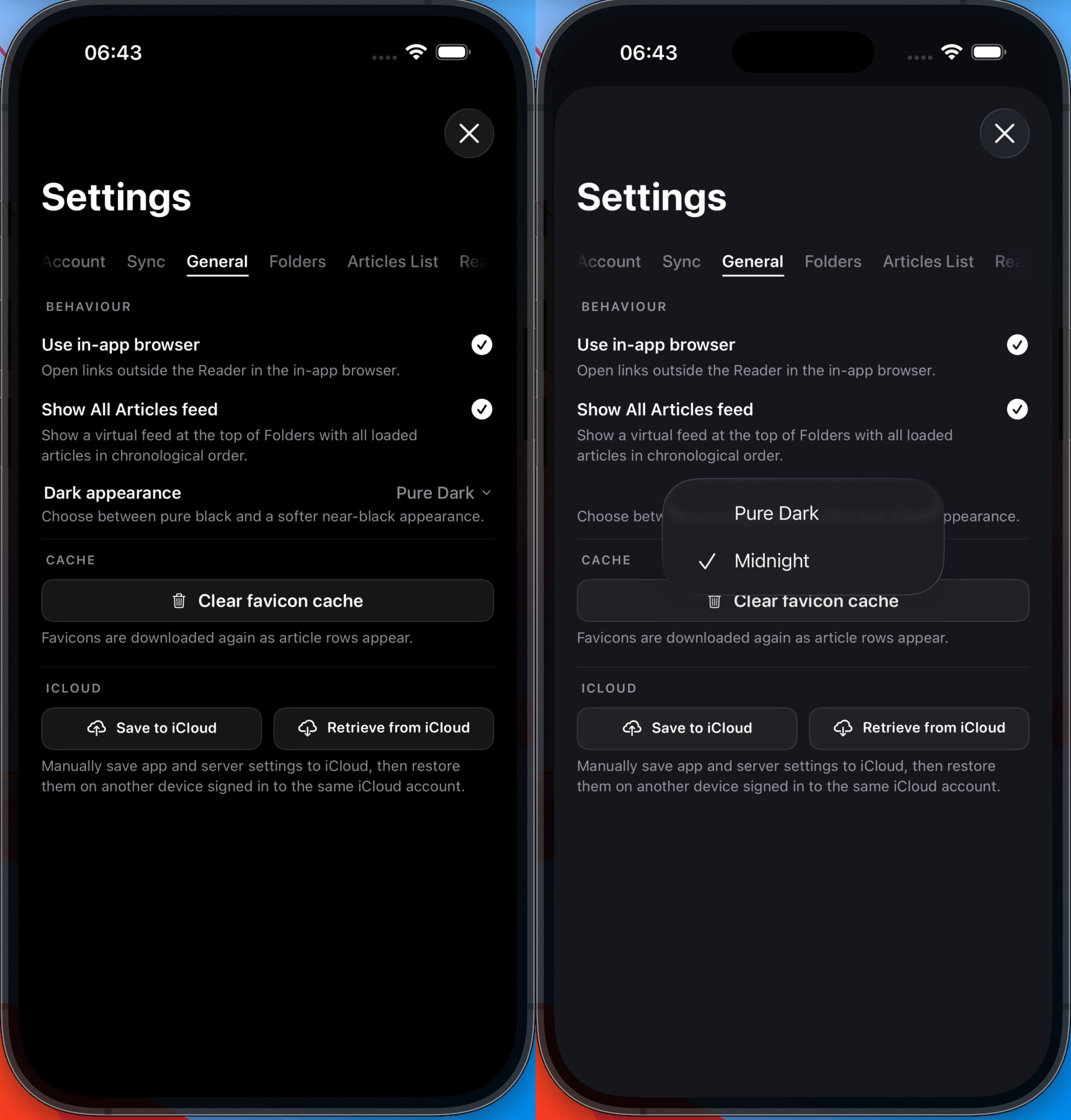
Lettura provides two dark appearance variants: Pure Dark, using a black interface and Midnight Dark, using a slightly lighter dark color. Pure Dark is particularly useful on OLED displays because black pixels are switched off completely, while Midnight Dark provides a lower-contrast variant.
Inline image viewer
Images inside articles can be opened in an inline viewer and zoomed.
Managing feeds and folders
Lettura also can manage existing FreshRSS subscriptions directly from the sidebar.
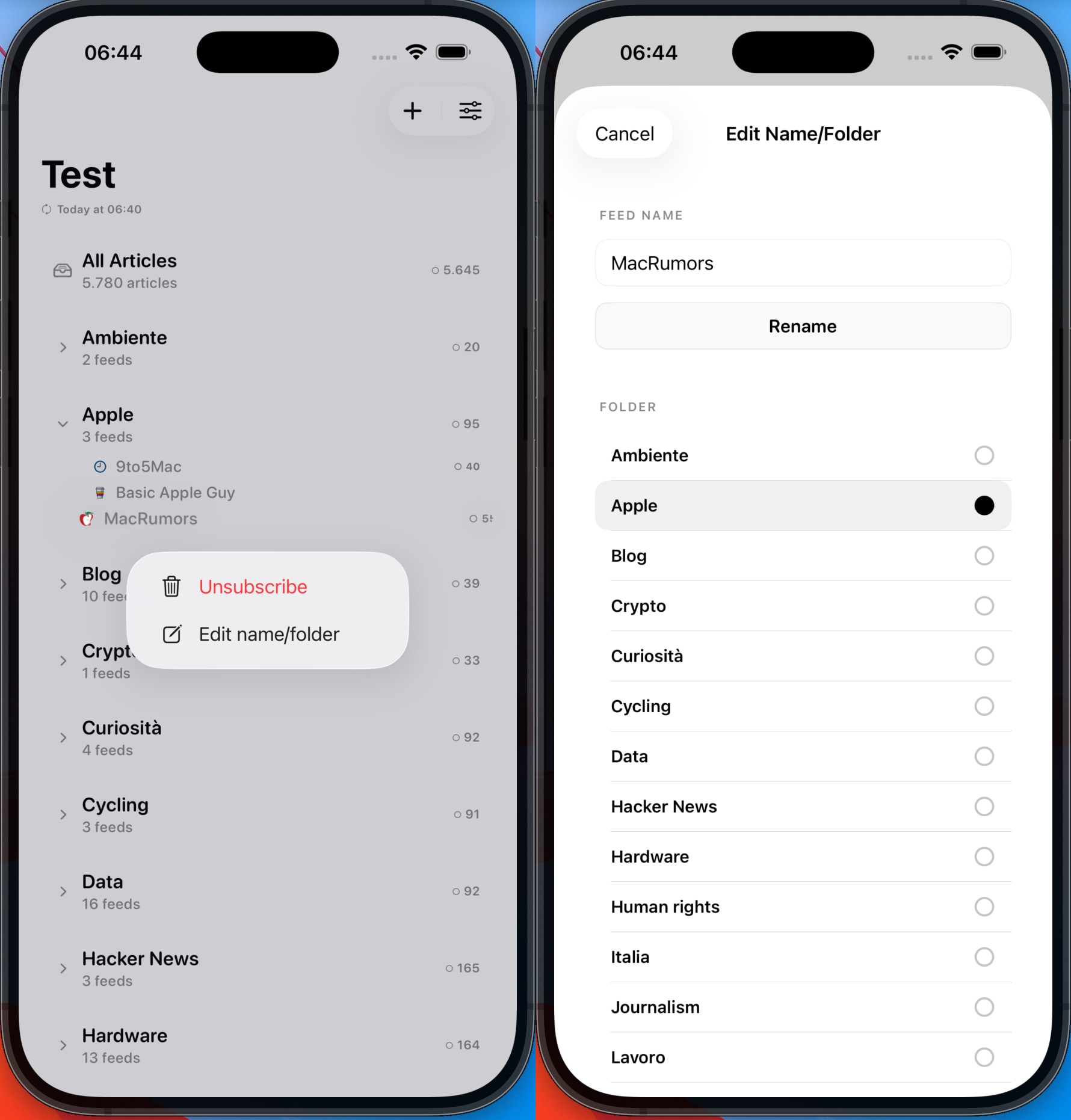
For each feed, you can rename the subscription, move it to another folder, or unsubscribe from it.
Renaming and moving a feed are handled through FreshRSS’s subscription/edit endpoint, for example, moving a feed removes the old folder label and adds the new one:
request.httpBody = formEncodedBody([
    ("s", feedID),
    ("ac", "edit"),
    ("a", "user/-/label/\(newFolderName)"),
    ("r", "user/-/label/\(oldFolderName)")
])
After the server operation succeeds, Lettura updates its local folder structure immediately, so the sidebar reflects the change without requiring a complete synchronization. Unsubscribing also removes the feed and its locally cached articles.
Adding a new feed
Lettura also includes a feed-discovery workflow that does more than simply accept an RSS feed URL: when you enter a website homepage instead of a direct RSS URL, the application tries to discover the available RSS or Atom feeds automatically.
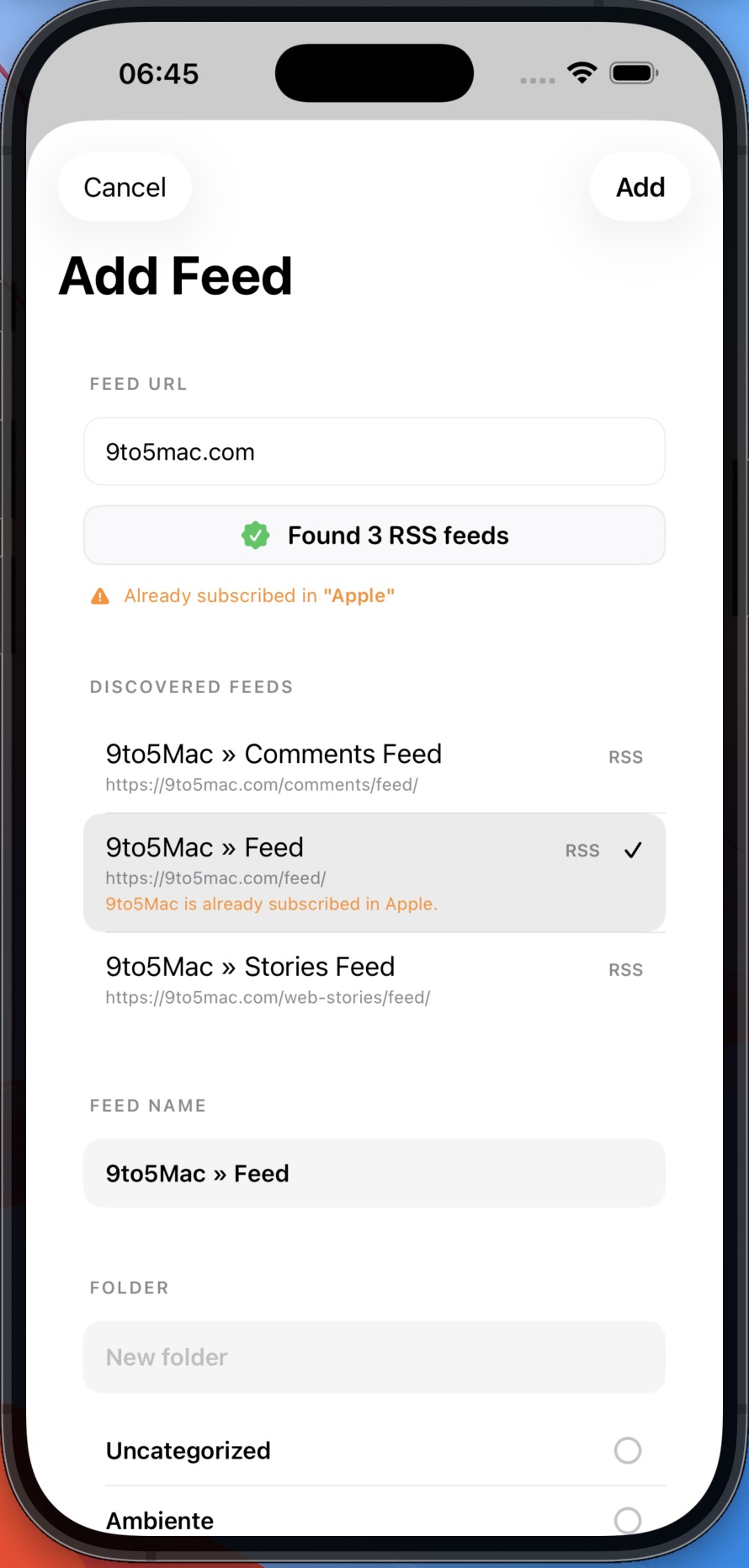
The service first downloads the homepage and looks for standard HTML feed declarations, such as:
<link
    rel="alternate"
    type="application/rss+xml"
    href="/feed.xml"
    title="Example RSS feed">
If a website exposes more than one feed, Lettura displays all the available feeds so that you can choose the one to subscribe to.
Before adding the feed, the application checks whether it is already subscribed. If it is, Lettura shows the existing folder instead of silently creating a duplicate subscription.
The discovered feed can also be renamed before subscribing.
iCloud settings backup
Lettura can manually save its preferences to iCloud and restore them on another device using the same iCloud account.
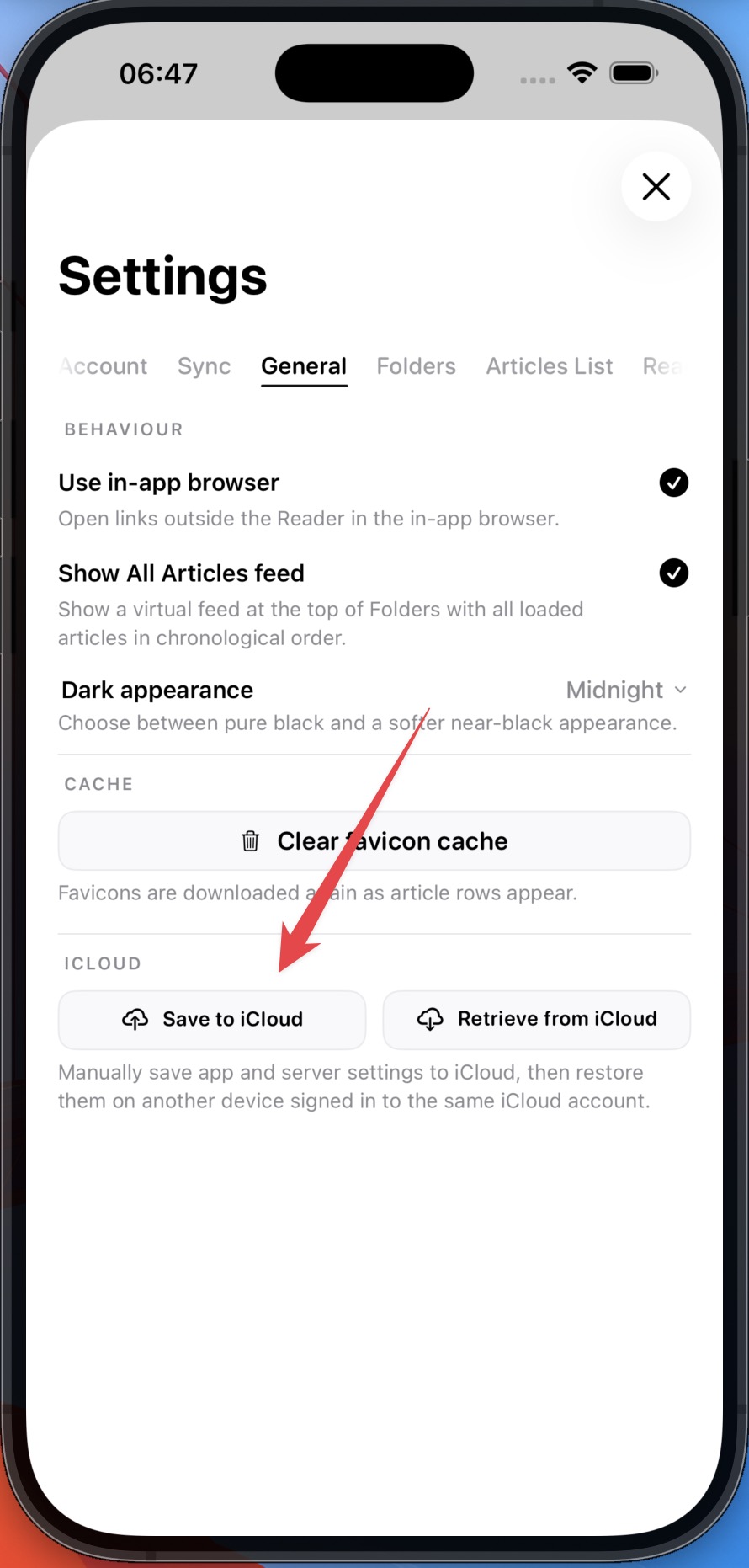
This is a settings backup that includes account configuration, display options, reader preferences, dock actions, swipe actions, and synchronization settings.
The serialized backup is stored using NSUbiquitousKeyValueStore:
let data = try JSONEncoder().encode(preference.cloudBackup)

cloudStore.set(
    data,
    forKey: "com.giuliomagnifico.Lettura.readerPreferencesBackup"
)

_ = cloudStore.synchronize()
On another device, Lettura decodes the backup, applies the preferences, saves the SwiftData model and updates the active application configuration.
Demo mode
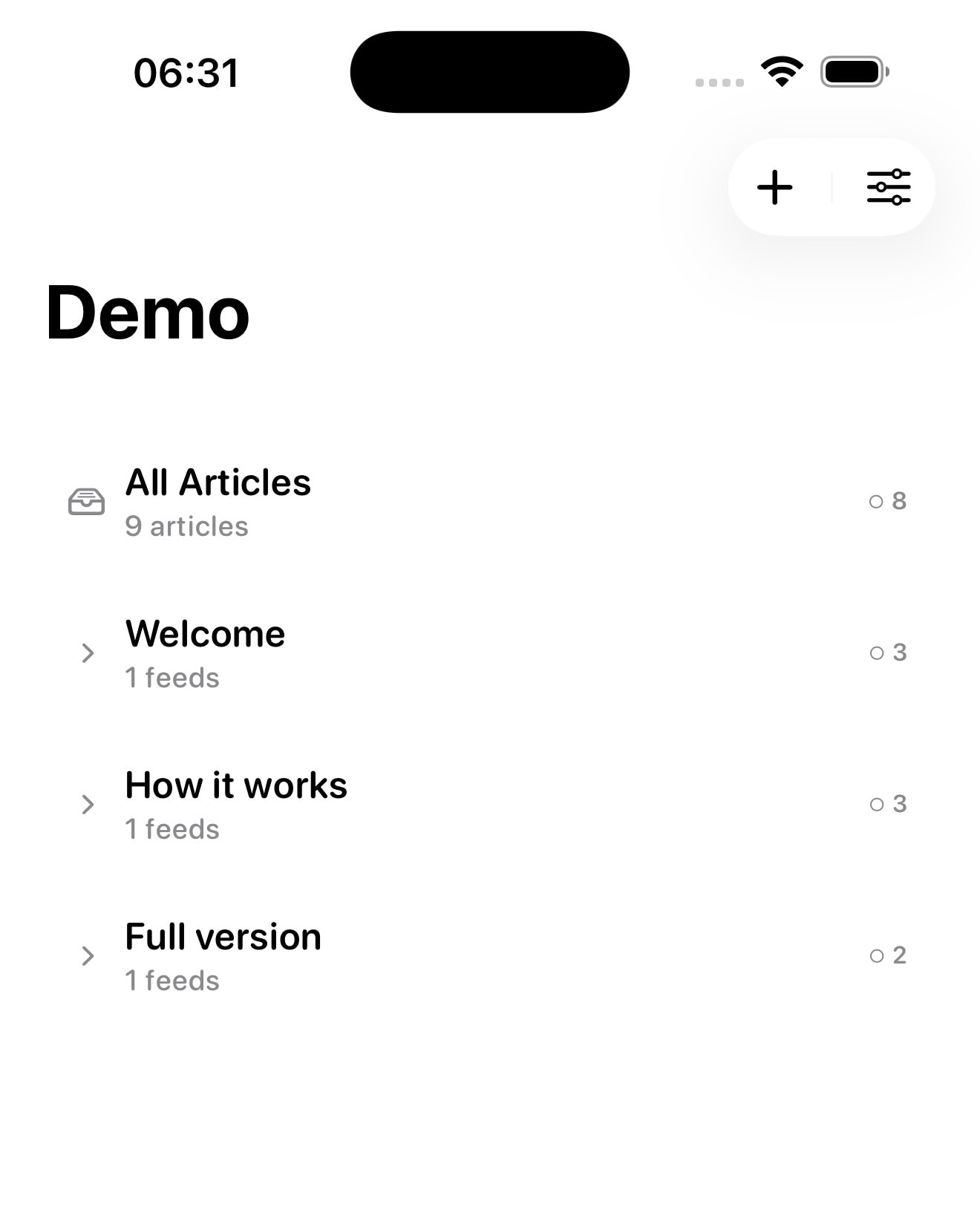
The first launch starts in demo mode, without requiring an immediate FreshRSS configuration.
The demo content is generated locally by DemoSeedService and it simply provides example folders, feeds, articles, summaries, and explanatory content so that the interface can be explored before connecting a real account.
Demo mode is mainly a presentation mode and it prevents the application from appearing completely empty when the local cache has been cleared or when the user has not yet configured a server.
Settings
Lettura includes additional options for configuring folder visibility, unread and starred counters, article sorting, article-list density, synchronization timing, read-on-scroll, browser behavior, reader typography, dock actions, swipe actions, dark appearance and cache.
iPad compatibility
Lettura is fully compatible with iPadOS and uses the same SwiftUI interface and application architecture as the iPhone version. The layout adapts to the larger display, while the reader, feed management, synchronization, customization options and dock actions are the same across devices.
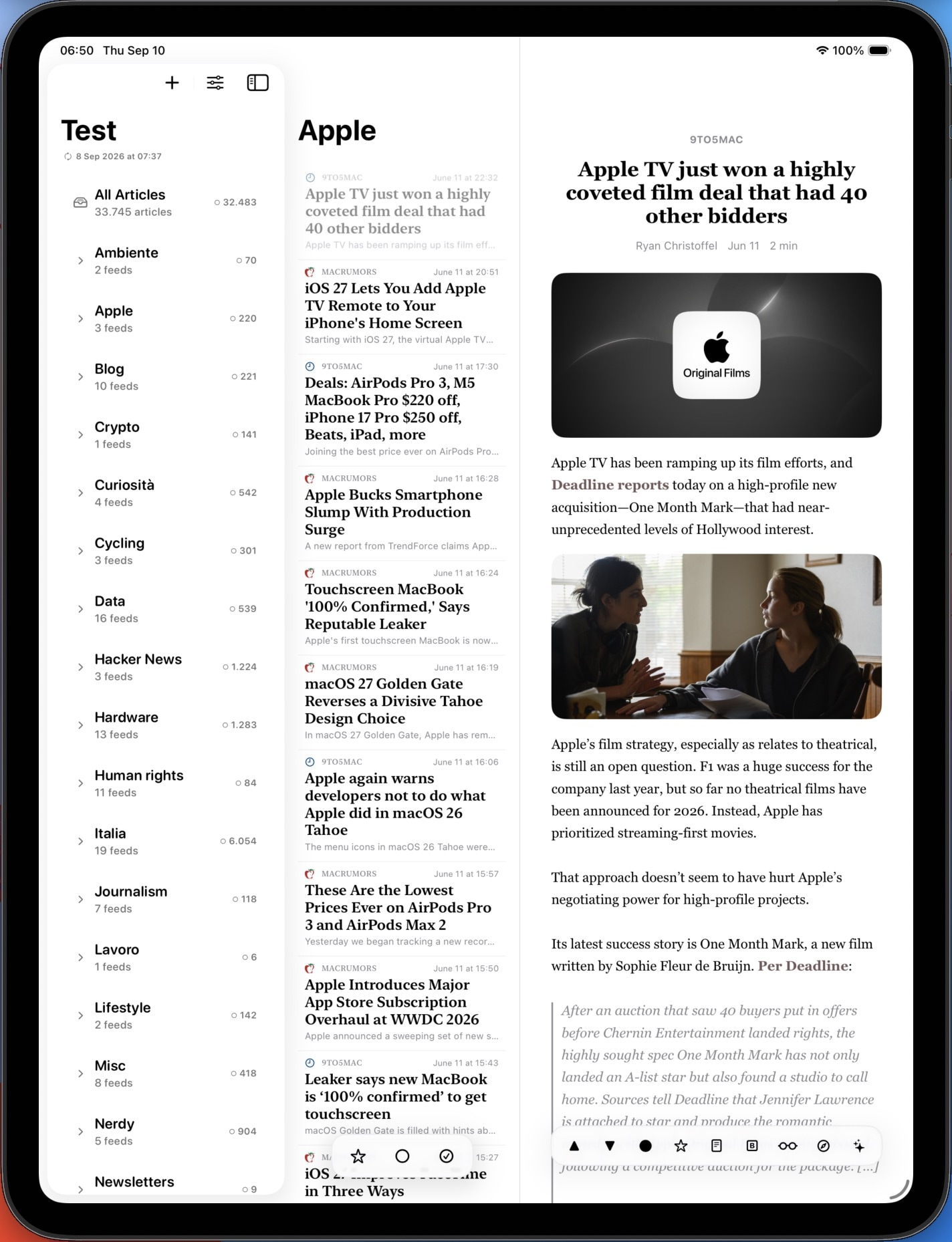
The iPad interface is designed to take advantage of the additional screen space without introducing a separate codebase. The same application model, article list, reader, settings, and synchronization services are shared across iPhone and iPad, but it also adjusts some interaction behavior depending on the current device.
iPad: The Mark Read on Scroll workaround
After encountering an issue with the Mark Read on Scroll feature on iPadOS, I introduced a specific implementation for iPad.
Basically on iPhone, Lettura uses SwiftUI’s native scroll-target visibility callbacks, while on iPad (and on macOS), the application uses a custom visibility fallback based on article-row frames and the list viewport. I introduced this function because the native visibility behavior was not reliable enough in the iPad layout, especially when the device orientation changed.
The fallback is coordinated by ArticleListIPadFallbackCoordinator.swift and ArticleListView.swift.
Each article row reports its frame through a preference key, Lettura then considers an article visible when its frame intersects the visible viewport:
for (articleID, frame) in frames {
    guard frame.maxY > 0 &&
          frame.minY < articleListViewportHeight else {
        continue
    }

    visibleEntries.append((
        id: articleID,
        index: model.listStore.index(for: articleID) ?? Int.max,
        minY: frame.minY
    ))
}
The visible rows are sorted according to their position in the article list. The first and last visible indexes are then compared with the values from the previous update to determine the scroll direction:
batchEngine.updateVisibleIndexState(
    previousFirstVisibleIndex: lastIPadFallbackFirstVisibleIndex,
    previousLastVisibleIndex: lastIPadFallbackLastVisibleIndex,
    currentFirstVisibleIndex: currentFirstVisibleIndex,
    currentLastVisibleIndex: currentLastVisibleIndex
)
The fallback also samples the scroll offset while the user is interacting with the list. Sampling runs approximately every 80ms and very small visibility changes are ignored to reduce unnecessary CPU load. When the list stops moving/scrolling, Lettura waits for a short idle period before finalizing the scroll interaction and marking the relevant articles as read.
This workaround exists because visibility callbacks and scroll geometry can behave differently in larger layouts and with different iPad orientations. By combining row-frame intersection, article indexes, scroll direction, offset sampling and a delayed idle flush, the Mark Read on Scroll feature can work quite reliably on iPadOS as well.
iPad: The full-screen in-app browser
When the “In-app browser” option is enabled, Lettura presents the original webpage using SFSafariViewController inside the application. If preferred, you can choose “External browser” to open the article title or links in the separate Safari app.
The browser presentation is implemented in BrowserSupport.swift. It uses a small UIViewControllerRepresentable bridge so that SFSafariViewController can be presented from a SwiftUI view:
extension View {
    func safariPresenter(
        item: Binding<BrowserURL?>
    ) -> some View {
        background(
            SafariPresenter(item: item)
                .frame(width: 0, height: 0)
        )
    }
}
The bridge creates an SFSafariViewController and presents it when a new BrowserURL is assigned.
On iPad, the browser is explicitly presented in full-screen mode. Lettura also hides the status bar and uses an opaque black background while the browser is visible:
if UIDevice.current.userInterfaceIdiom == .pad {
    controller.shouldHideStatusBar = true
    safari.modalPresentationStyle = .fullScreen
    safari.modalPresentationCapturesStatusBarAppearance = true
    safari.view.backgroundColor = .black
    safari.view.isOpaque = true
}
So, by using SFSafariViewController, Lettura provides an integrated browsing experience without having to implement its own web view.
macOS version
Lettura is also available on macOS via Mac Catalyst and doesn’t require a separate purchase.
The current macOS version shares the same SwiftUI interface and application logic as the iOS and iPadOS versions.
On macOS Lettura also adds keyboard shortcuts for navigating between articles, refreshing the article list, toggling the read state, opening articles in Safari, toggling Bionic Reading, toggling full-content extraction, starring articles, adding them to the Reading List, sharing, and marking all articles as read.
priorityKeyCommand(
    "Refresh",
    input: "r",
    modifiers: .command,
    action: #selector(letturaRefresh(_:))
)
Privacy
Lettura does not include trackers or analytics that give me access to user activity.
The application communicates directly with the FreshRSS server configured by the user. Article data, feed information and synchronization requests are exchanged only between Lettura and that FreshRSS instance.
Pricing and availability
Lettura is available on the App Store for $3.99. The price reflects the time required to design, implement, test and maintain the application.
Download Lettura on the App Store
Here’s also the official support page from my dev website: Lettura | giuliomagnifico.dev
I plan to continue actively maintaining Lettura and improving it over time, simply because I use it many times a day. So, if you encounter any problems, have suggestions or need help with the app, feel free to contact me by email at [email protected].